

About
Gallery members can only see and interact with Gallery content that has been released by a Gallery manager or through automation. This chapter describes how to manually release Gallery content. Galleries can also be configured to automatically release content upon submission.
Requirements
- The Galleries feature is part of Strawberry’s Communications System add-on. The add-on must be activated on your system in order to use this feature.
- To release an asset within a Gallery, you must be a manager of that Gallery
Releasing One or Multiple Gallery Assets
1. Select the private Gallery asset(s) that you wish to release. You can select by using the checkbox that appears on hover, or by drawing a lasso around the assets to bulk-select them.
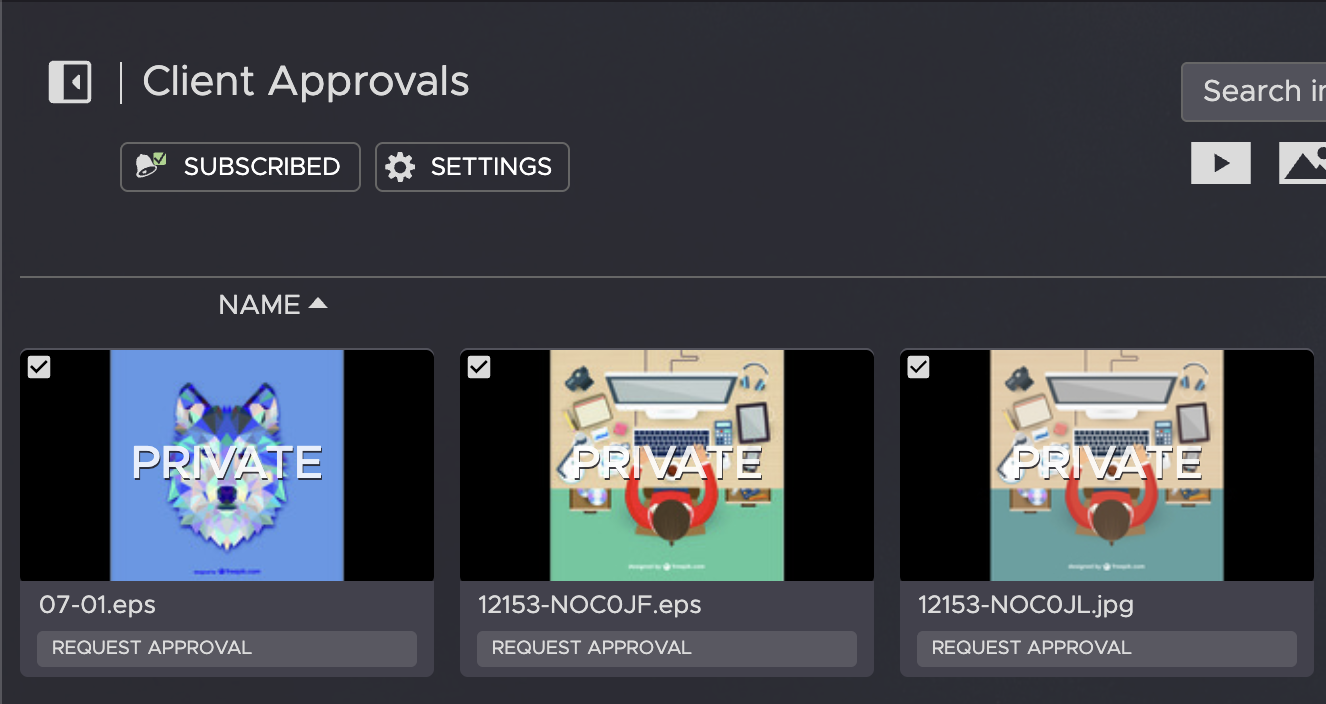
2. Right-click on one of the selected assets and select Adjust release properties from the context menu.

3. In the “Release Gallery Items” modal, you can make the following selections:
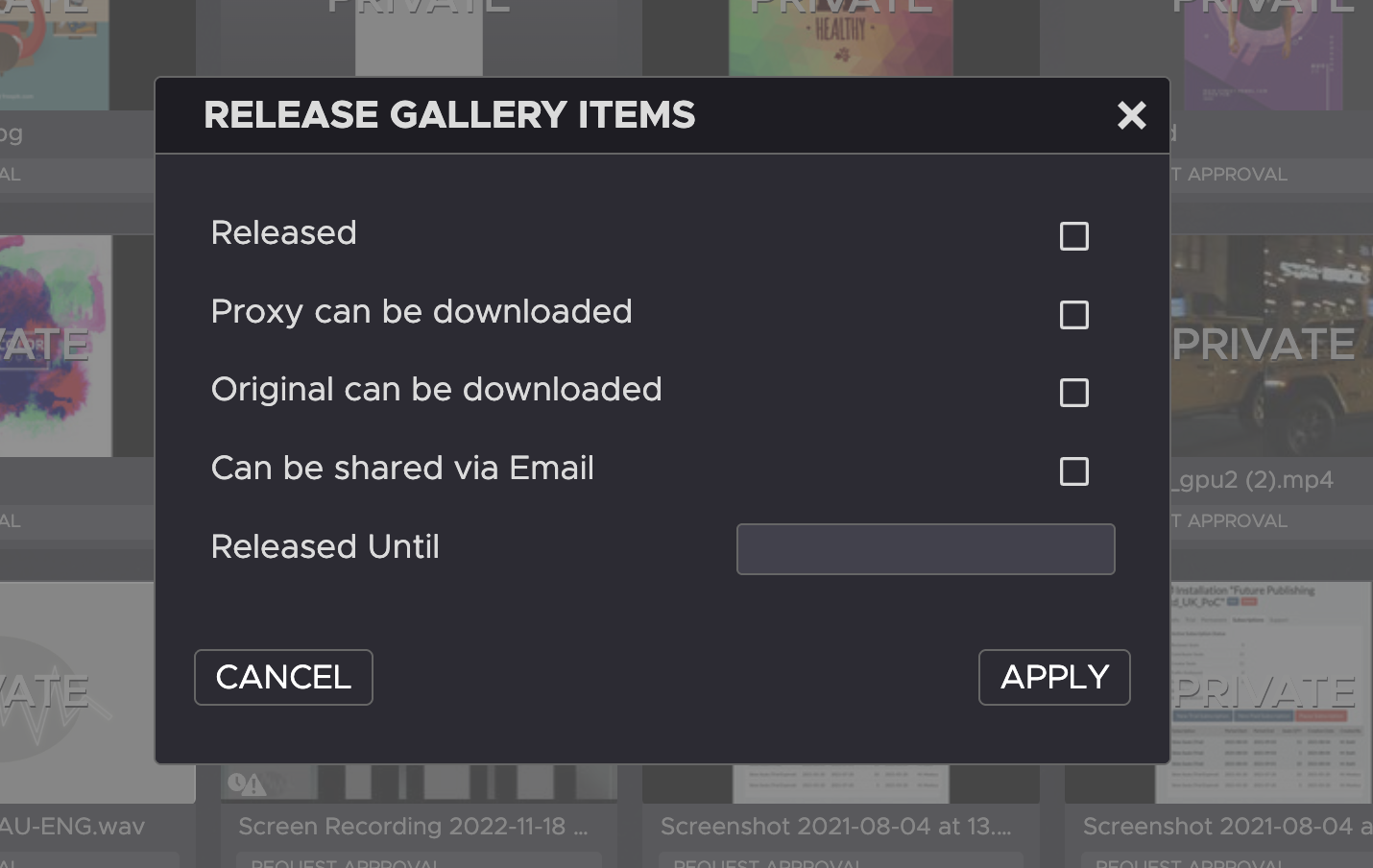
Released
When checked, the asset will be released and become visible to Gallery members.
Proxy can be downloaded
When checked, Gallery members will be able to download a proxy version of the asset.
Original can be downloaded
When checked, Gallery members will be able to download the original version of the asset.
Can be shared via Email
When checked, Gallery members will be able to share the asset as a review link via Email.
Released until
Defines how long the asset stays released (visible to Gallery members) until becoming “private” again.
Need more help with this?
Visit the Projective Support Websites